How to Use a GL.iNet Comet KVM for Remote Work
Remote KVM vs Self-Hosted VPN (WireGuard / Tailscale): Which Do You Actually Need?
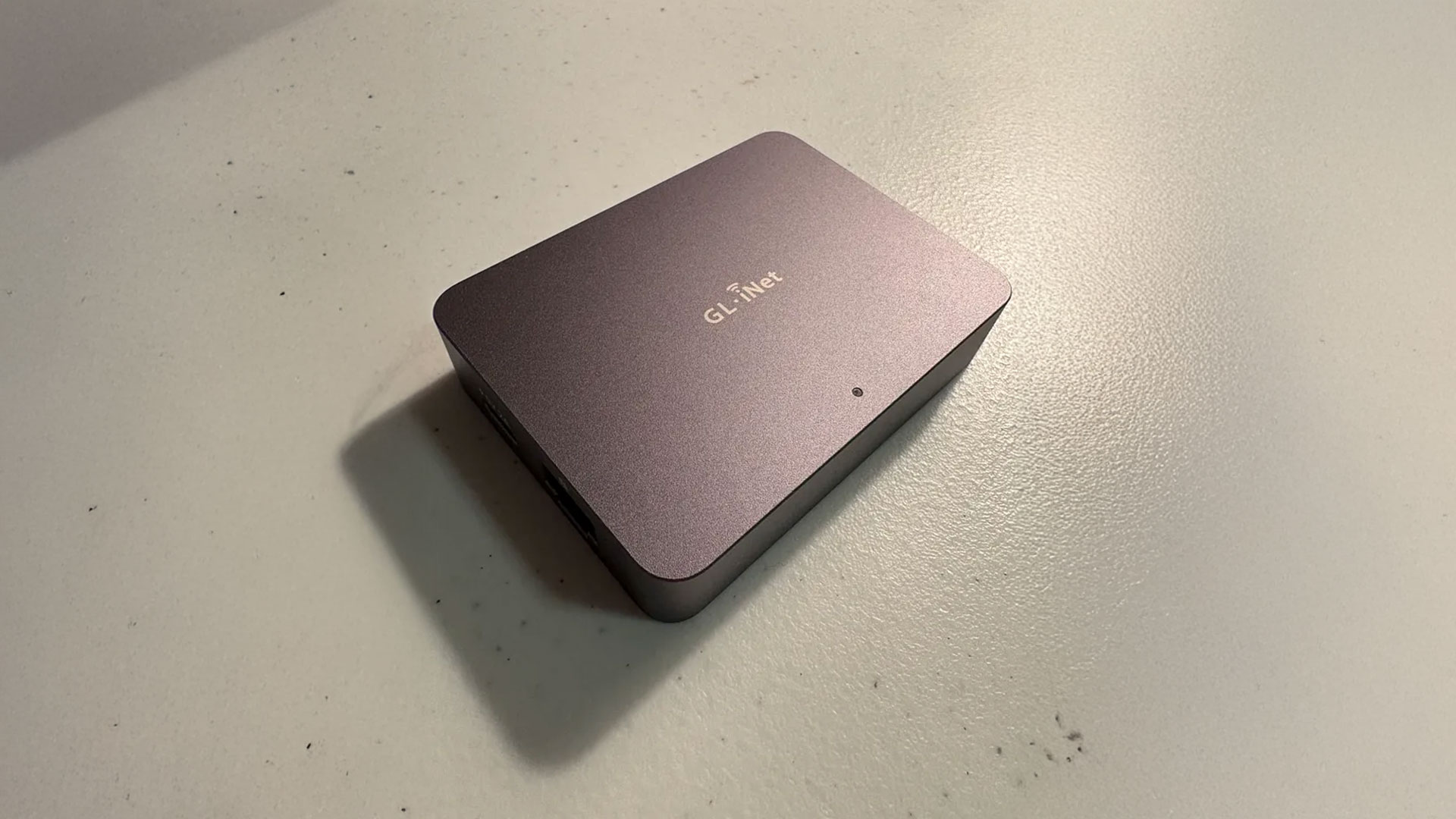
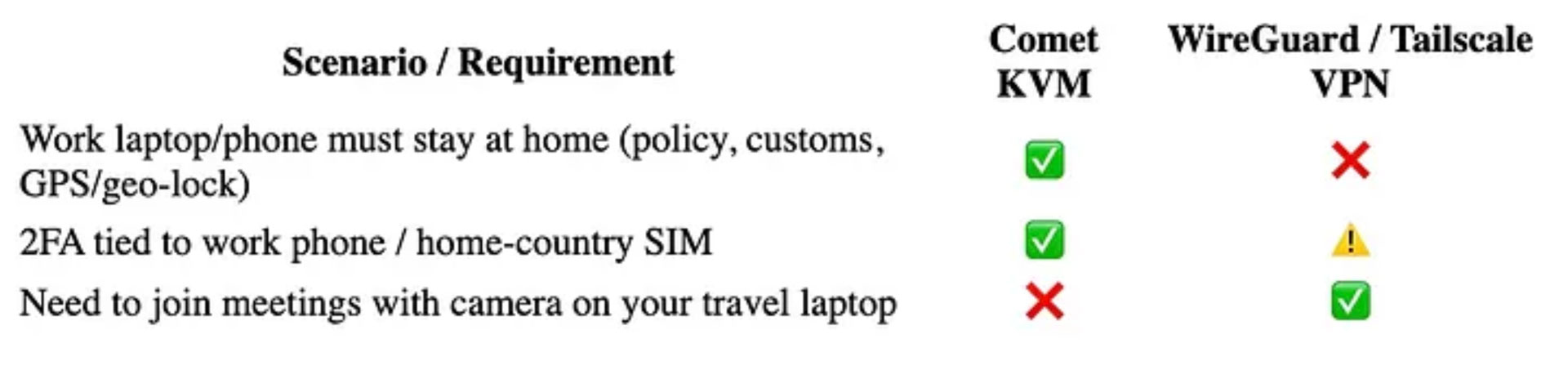
When you’re working from another country, there are two very different ways to “reach back” to your gear at home:
- Self-hosted VPN (WireGuard, Tailscale, etc.):
You extend your network so your laptop/phone, which you travel with, behaves like it’s connected to your home router.
- Comet KVM over Internet:
You extend your screen, keyboard, and mouse so you’re literally controlling the device that stayed at home (PC, Mac, or phone via HDMI adapter), at the hardware level.
The key difference:
VPN = “Pretend I’m on my home network while using work device(s) outside of home”
KVM = “Pretend I’m physically sitting in front of the work device(s), while remote controlling it with my personal device”
For many remote-work setups, a VPN is enough. The majority of laptops do not have any GPS chips in them, and Wi-Fi geolocation is solved by simply using an ethernet cable between your laptop and the VPN router (eg. GL.iNet Beryl AX).
But once your company starts enforcing things like Wi-Fi always ON or work phone 2FA app forced to use GPS, etc. then the VPN option is no longer viable. That’s where a hardware KVM like the GL.iNet Comet becomes the solution.
Comet gives you 4K@30fps video capture, low-latency keyboard/mouse control, and remote audio output, all over an encrypted tunnel.
You see whatever your work laptop/phone sees, and you click/type as if you were sitting at your desk back home.
⚠️ Important limitation (for the current version of Comet KVM firmware):
Comet does not support two-way video yet. You can view the remote screen, but you cannot pass your travel laptop’s webcam through to your work laptop.
Two-way audio is supported on all Comet KVM models, so you can hear system sounds and meeting audio from the device plugged into Comet. In practice, that means you can:
1. Join a Teams/Zoom/Webex call from the work laptop at home
2. Listen/Speak to the meeting audio remotely
3. Share your screen from that work laptop as usual…you just can’t send your travel laptop’s camera feed into that call via Comet.
In some cases, the MS Authenticator app is able to be operated completely without internet using the offline backup codes that are auto-generated in the app every 60 seconds. In this case, if the phone is being solely used for 2FA authentication, then using a KVM is not necessary and the phone can be taken while traveling while remaining completely offline and cellular turned OFF.
Which Comet Model Do I Need?
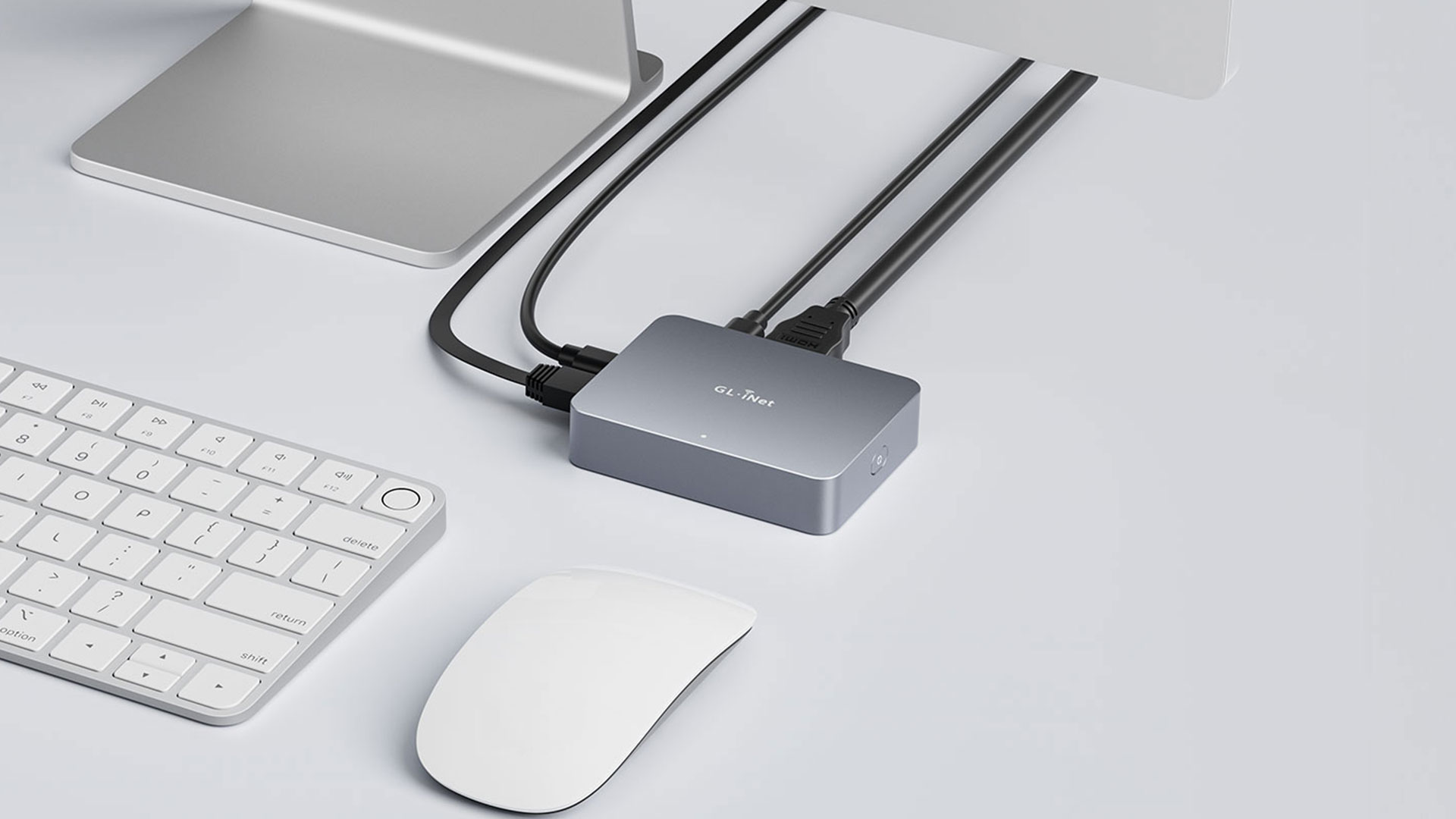
If you have access to the LAN port of your router at home, then the basic GL.iNet Comet (GL-RM1) is perfectly fine. You will simply plug in an ethernet cable between the LAN of your home router and the Comet to provide the Comet with Internet. Your laptop or phone will connect to the Wi-Fi as normal (or wired to home router LAN also, if you desire).
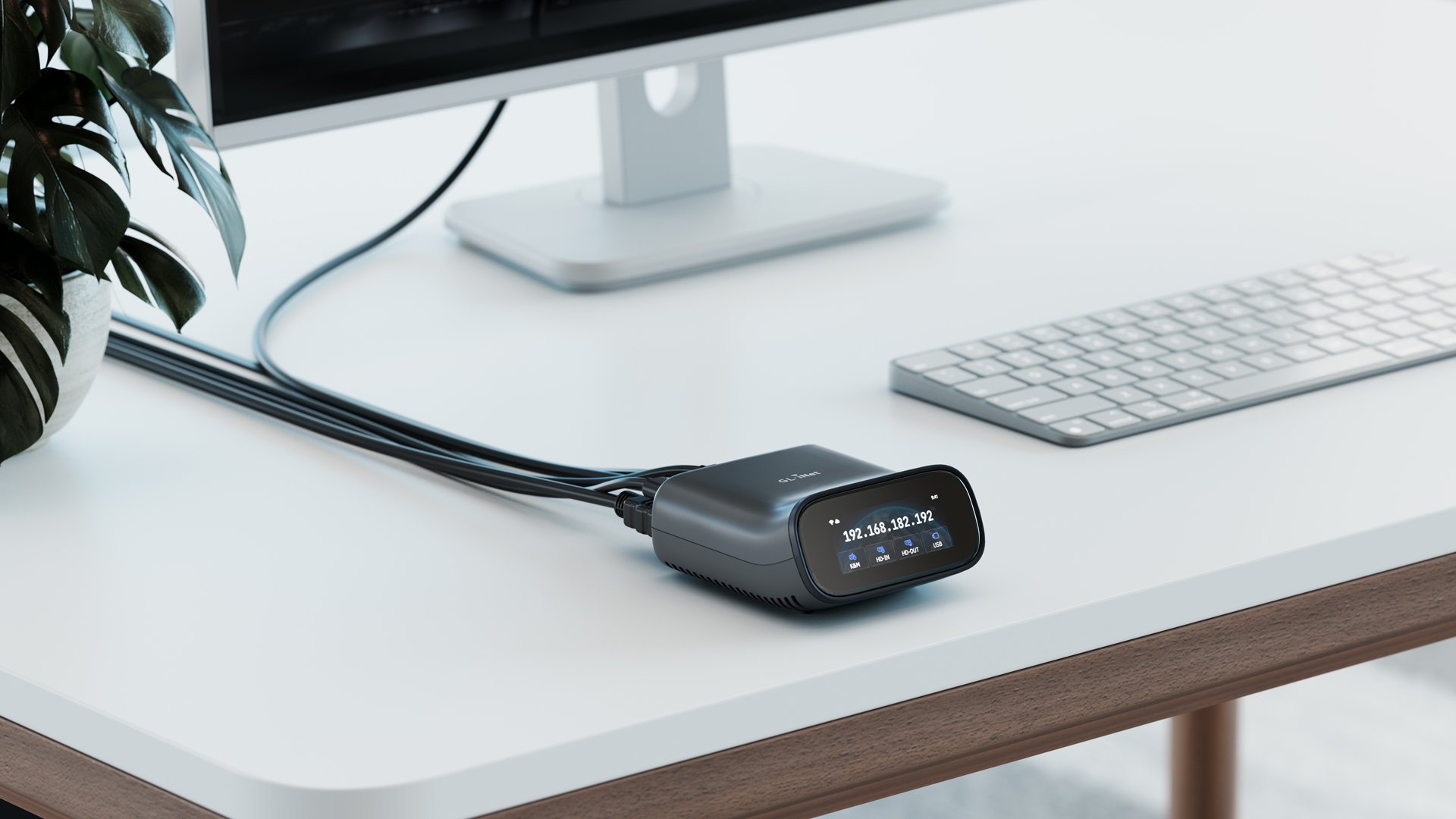
If you do NOT have access to the LAN port of your home router, then you will need the GL.iNet Comet Pro (GL-RM10), which is the version of Comet that has Wi-Fi connection ability and can connect to your home Wi-Fi to receive Internet. Available for pre-order (shipping in late December).
If you desire a bullet-proof solution that will work even if your home Internet goes down, then you will want the Comet 5G (GL-RM10RC), which has not been released yet. You can sign up for notifications here: https://www.gl-inet.com/products/gl-rm10rc/
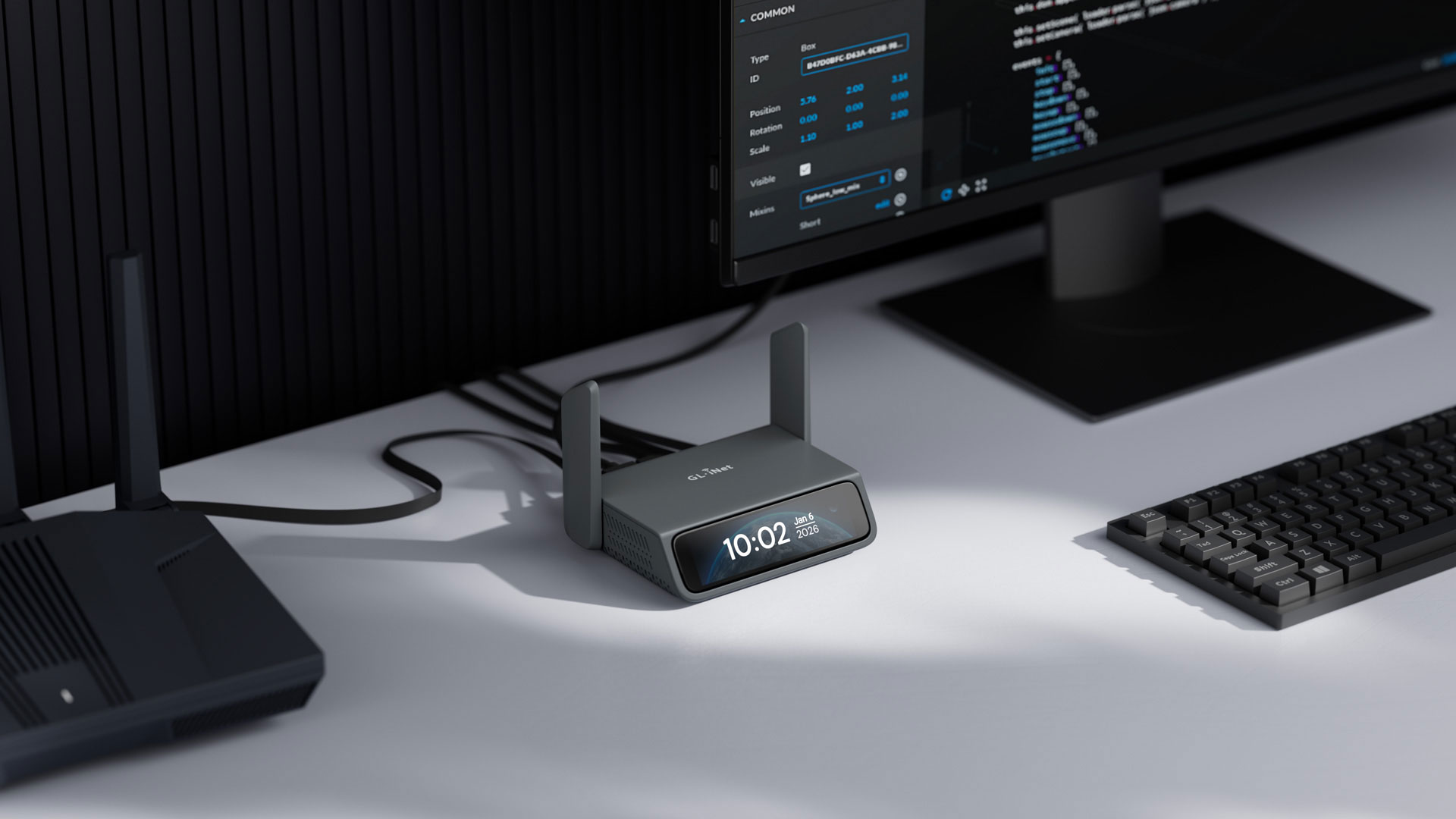
Setup (1x Comet required per device)
The basic setup of the Comet KVM to control your laptop is very simple. You can follow the instructions here: GL.iNet KVM Setup Guide
The instructions above will show you where to plug in the cables and also the various methods of remote accessing the device (via the https://glkvm.com website or the GLKVM application for Mac/Windows). The KVM is always locally accessible on the same network it is connected to via http://glkvm.local.
Laptop scenario cable connections (cables included with Comet purchase):
- Comet power: USB-C (KVM) to wall plug and/or power bank
- Comet Internet: Ethernet (RJ-45) to home router LAN port (or wireless connection if using Comet Pro)
- Keyboard/mouse: USB-C (KVM) to USB-A (laptop). If your laptop only uses USB-C then simply use a USB-A female to USB C male adapter or hub.
- Video: HDMI (KVM) to HDMI (laptop). If your laptop does not have HDMI, then you will need an HDMI to USB-C adapter for your laptop.
- Laptop power: Normal power supply that you always use.
Phone scenario cable connections:
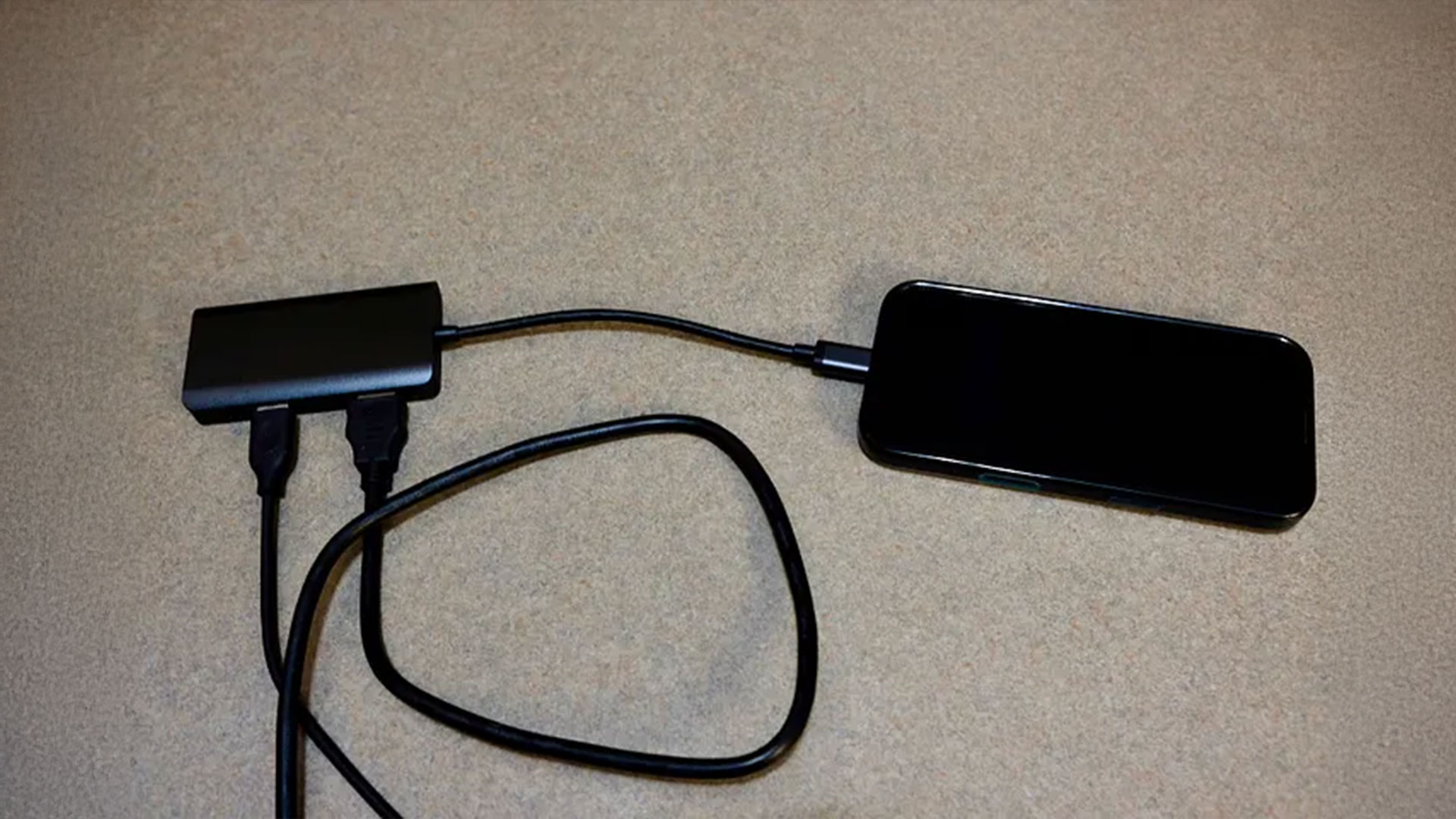
- Comet power: Same as above
- Comet Internet: Same as above
- Keyboard/mouse: USB-C (KVM) to USB-A (hub)
- Video: HDMI (KVM) to HDMI (hub)
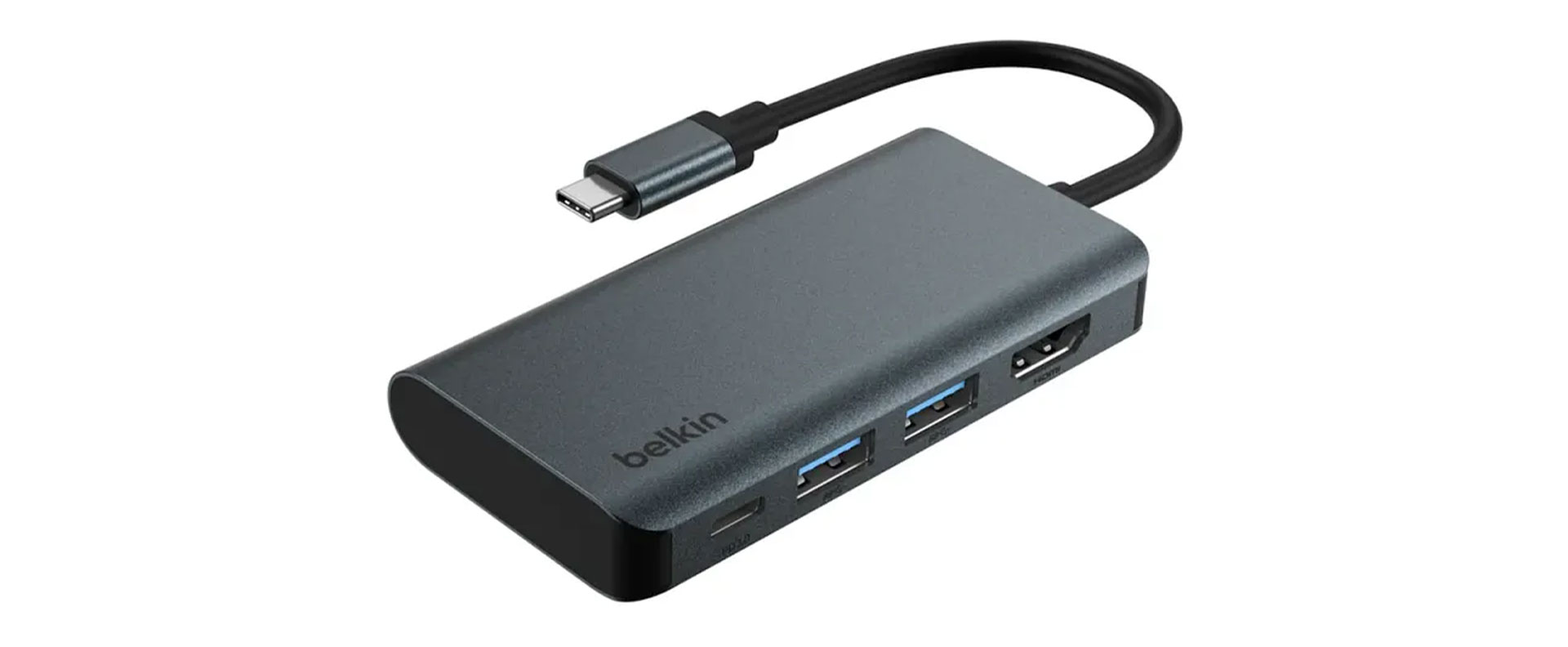
- Phone power: USB-C (hub) to wall adapter and/or power bank Required: USB-C hub with HDMI (shown below)
iPhone Settings & Recommended GL KVM Settings
The first thing you’re going to want to do is go to System Settings -> Accessibility -> Assistive Touch
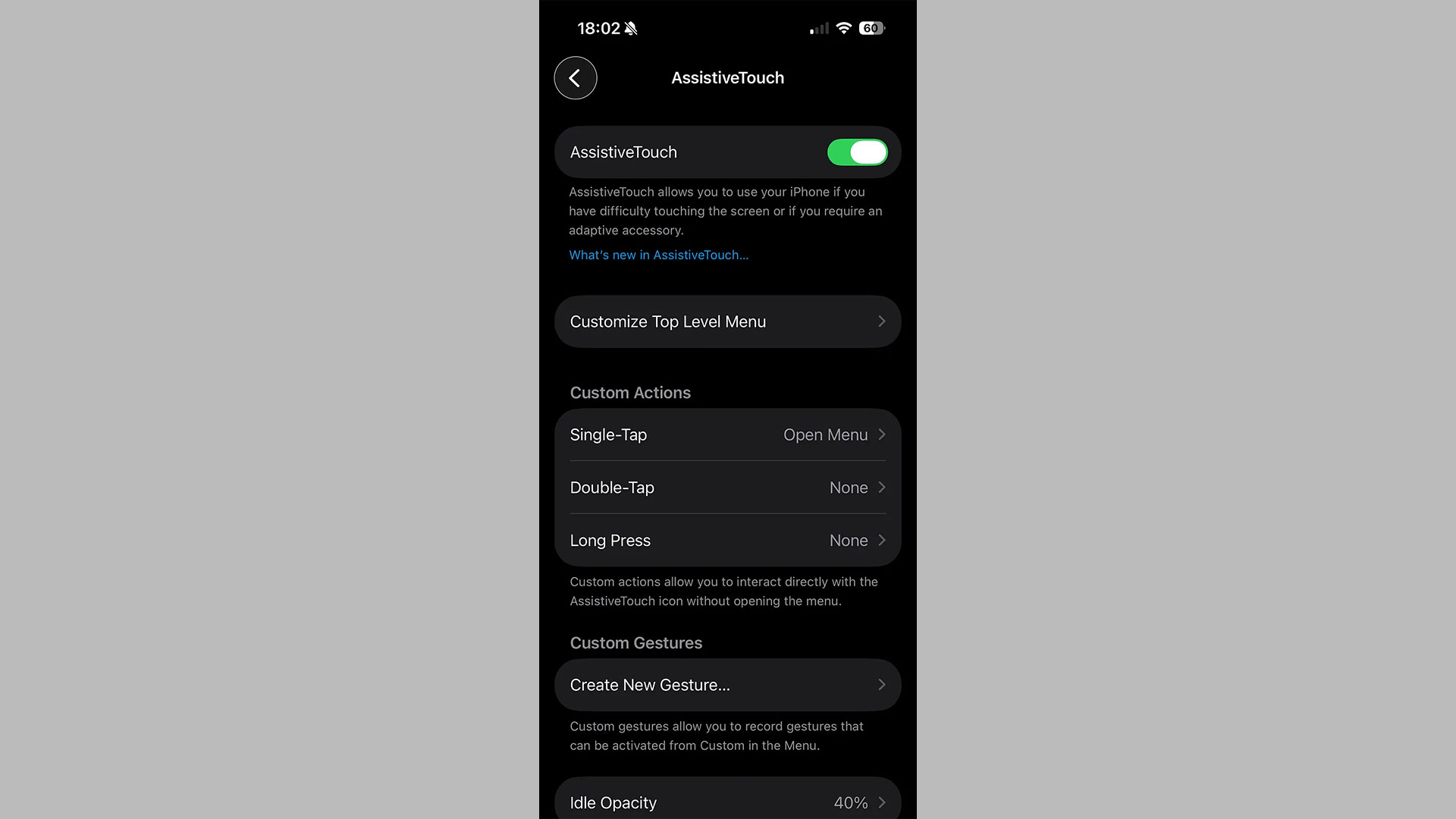
This will allow you to get to the home screen and control panel of your iPhone by clicking on a circle that is always shown on the iPhone screen (see below).
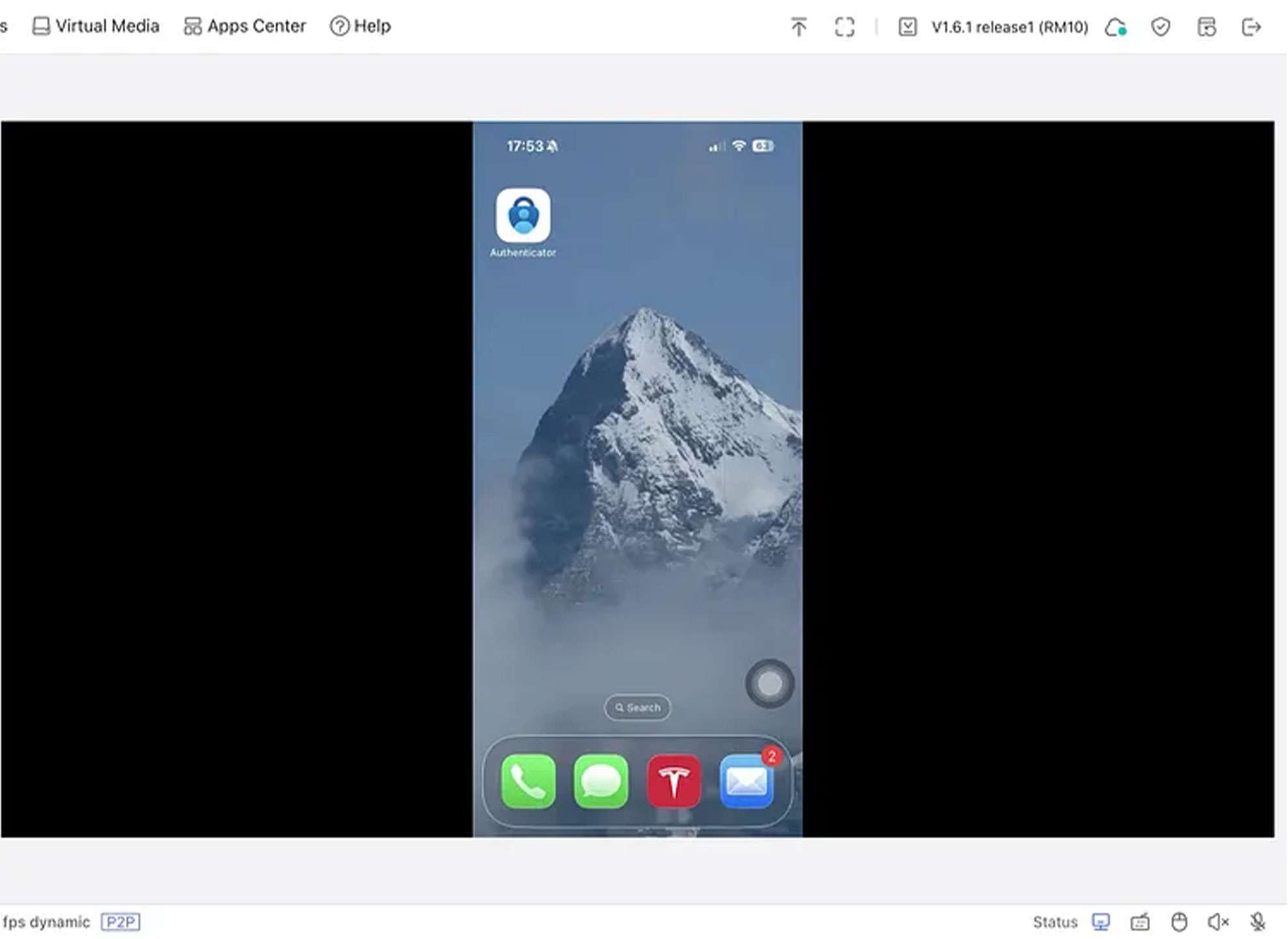
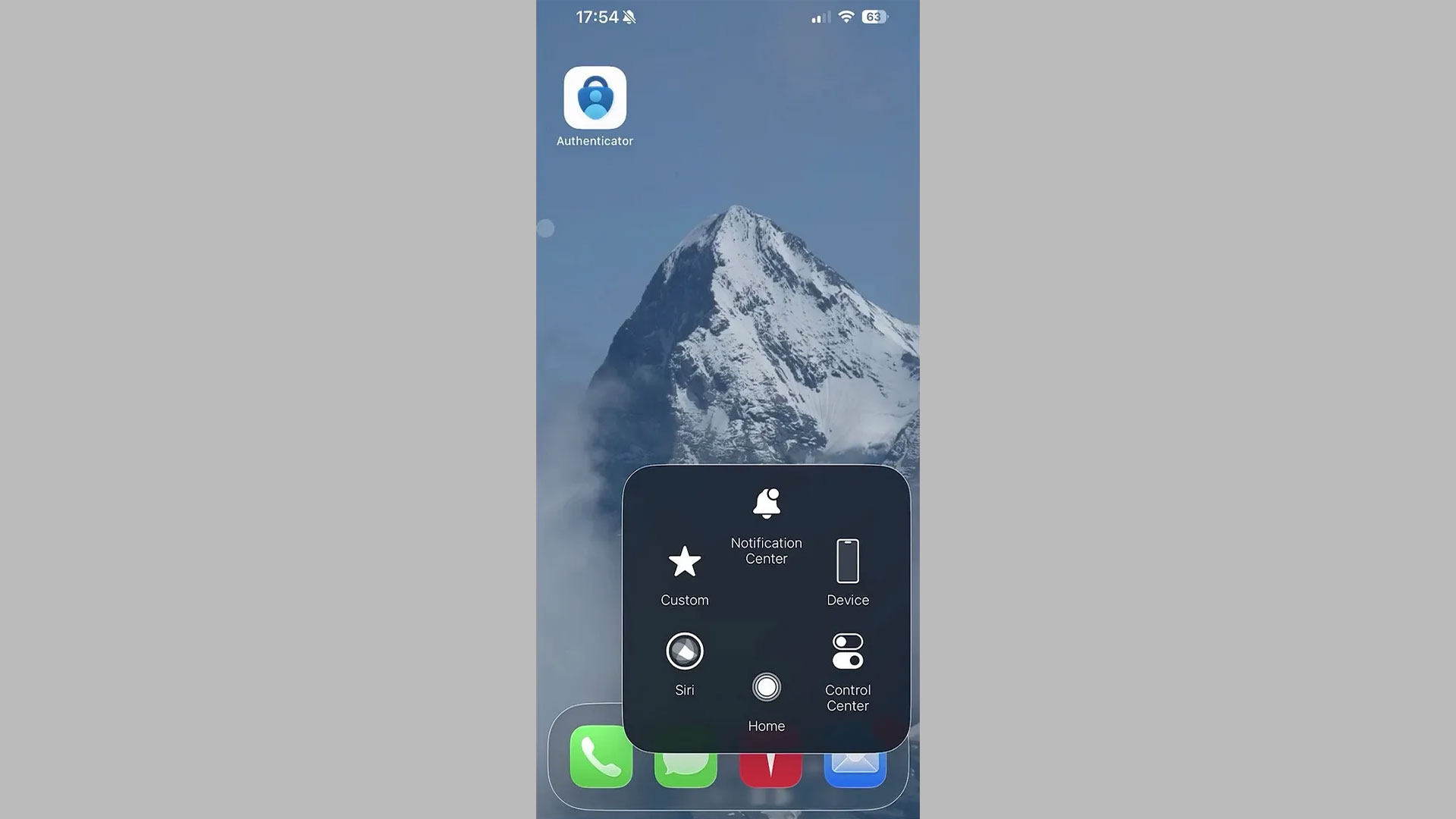
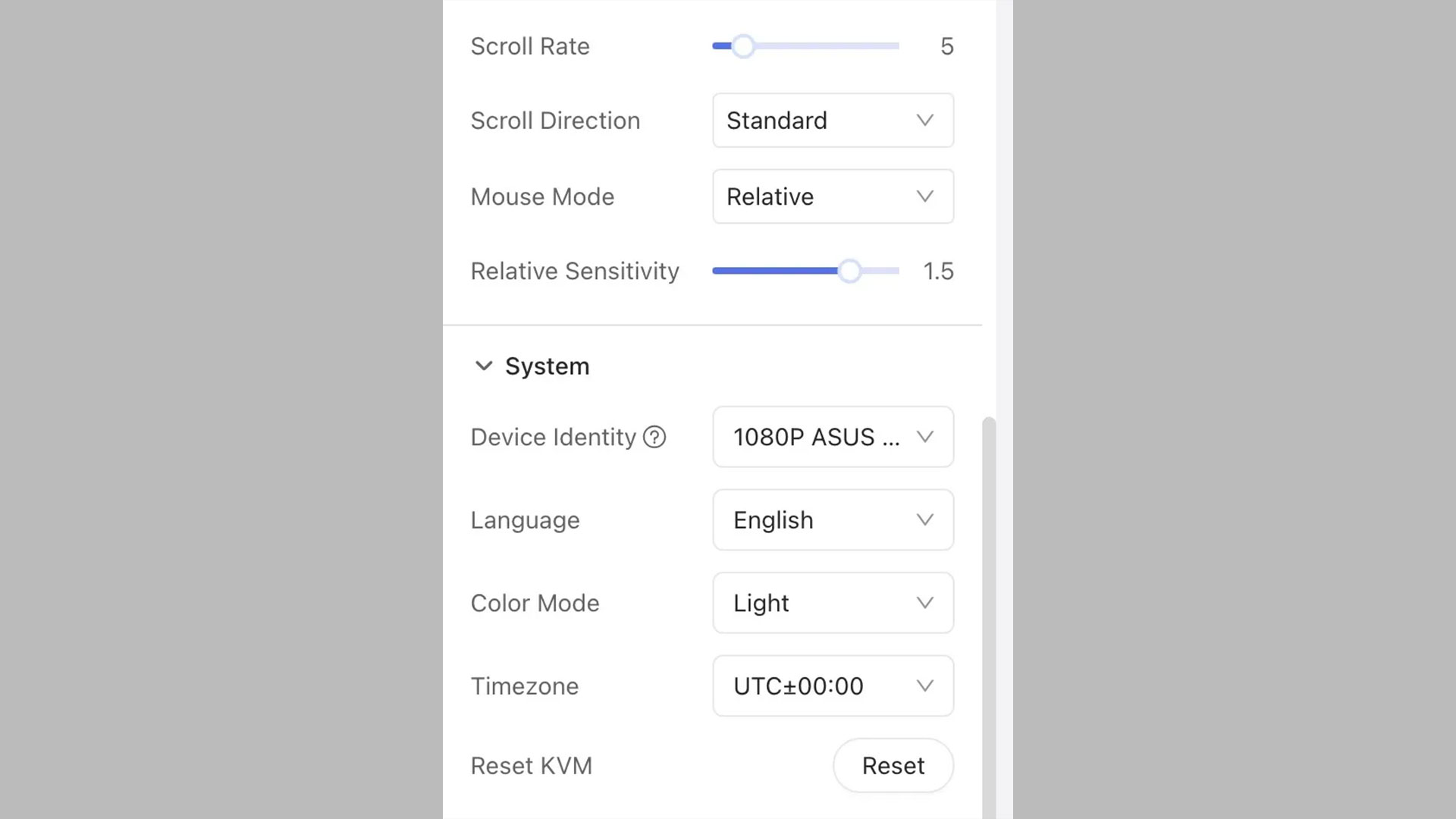
For controlling phones, it is necessary to change Mouse Mode to Relative.
Optionally, you may also want to change the Device Identity to something other than GLKVM, however is unlikely this will be inspected by anyone (and it’s weird that you’d have a phone plugged into an external display anyway).
System time zone can be set to whatever your local, home time zone is.
Practical KVM Tips
- If facing latency issues, try a lower resolution in the GL KVM Settings
- Use the built-in “Mouse Jiggle” feature in the GL KVM Settings to keep the laptop awake (assuming Wake-on-LAN is not possible due to the BIOS being locked down).
- Enable and use Tailscale as a second remote access method for your Comet KVM.
- If your laptop has a physical power button, consider a GL.iNet Fingerbot to press/hold the power button in case of emergencies.
For more information on VPN setups, see The Wired Nomad VPN guide here: https://thewirednomad.com/vpn

About The Author
Adam, a Virginia native with a passion for international travel, holds an Electrical Engineering degree from Virginia Tech. He is a Solutions Engineer and Call Center Manager at GL.iNet, creator of The Wired Nomad—a resource for digital nomads—and works full-time for the world’s largest satellite operator. Connect with him on his website.
About GL.iNet
GL.iNet builds network hardware and software solutions that bring affordable and secure network connectivity to families and businesses all over the world. We work with a wide range of industries, solving everyday internet problems in offices, and providing complex networking solutions such as smart buildings and IoT Networks. At GL.iNet, we believe all successful businesses build upon a strong and secure foundation, which is why our highest priority is perfecting network security and reliability for our partners.